
When you see a ping request time out error, it means your computer sent a small test message to another device on the network and got nothing back in a reasonable amount of time. It’s the digital equivalent of calling out to someone in a big room and only hearing silence—your device eventually just gives up waiting for a reply.
What's Really Happening Behind the Error
That "Request timed out" message is the end result of a failed digital handshake. Your computer uses a simple but powerful tool called ping to send out an ICMP echo request. You can think of this as your machine shouting, "Hey, are you there?" across the network.
If the destination device is online and can hear you, it's supposed to shoot back an ICMP echo reply, essentially saying, "Yep, I'm here!" The timeout error pops up when that reply never makes it back to your computer before the ping command's patience runs out.
More Than Just a "Connection Failed" Message
This isn't just a simple pass/fail grade; it's a vital sign for your network's health. A single, isolated timeout might just be a momentary network hiccup, but when you see them happening consistently, you know you've got a real problem on your hands.
This error is often a symptom of a few common issues:
- Packet Loss: The little bundles of data you're sending are getting lost somewhere along the journey. This could be anything from a bad ethernet cable to an overloaded router.
- High Latency: The round-trip time for your message to get to the destination and for the reply to come back is just too long. The
pingcommand only waits for a few seconds by default, and if the response doesn't show up in that window, it declares the attempt a failure. - Connectivity Black Holes: Your request might be hitting a dead end. The target device could be completely offline, unplugged from the network, or, very commonly, hidden behind a firewall that’s configured to just drop your requests without saying a word.
A ping request time out is a critical diagnostic indicator. It represents a failure to receive a response to an ICMP echo request within a set timeframe and has historically been a key signal of packet loss.
This packet loss is a real killer for performance. For instance, if you send six ping packets but only get five replies back, that 16.67% packet loss is definitely enough to cause noticeable problems. For anything sensitive to a stable connection, like a video call or online gaming, even 1-2% packet loss is considered a major issue. You can dive deeper into the ping command and its uses on the Globalping blog.
To really get to the bottom of the issue, it helps to know what the different ping responses mean. They all tell a slightly different story.
Common Ping Command Responses Explained
Here's a quick reference table to help you decipher the messages your ping command might be giving you. Understanding these is the first step in diagnosing the root cause of your connection problem.
| Response | What It Means | Common Cause |
|---|---|---|
| Request timed out | No reply was received within the default time limit. | Host is down, firewall block, or network congestion. |
| Destination host unreachable | A router along the path couldn't find a route to the destination. | Routing problem or the destination is on a different subnet. |
| Reply from... | A successful reply was received from the target host. | The connection is working as expected. |
Seeing "Reply from..." is what you want—it means everything is working. The other two messages are your cues to start digging into what might be going wrong with the network path.
Finding the Real Culprits Behind Timeout Errors
A "ping request time out" is rarely the problem itself; it’s a symptom pointing to a deeper issue. Uncovering the root cause involves a bit of detective work, starting with the simplest explanations and moving toward more complex network puzzles. Think of it as peeling back the layers of an onion to find what’s really breaking the connection.
Let’s begin with the most fundamental question: is the target device even powered on and connected to the network? It’s a surprisingly common oversight. A device that’s offline, asleep, or has a disconnected network cable can't send back a reply, making it the most straightforward reason for a timeout.
The Firewall Blockade
If you're certain the device is online, the next major suspect is a firewall. Firewalls are the digital gatekeepers of a network, and for good reason, many are configured by default to ignore or drop ICMP echo requests—the very message a ping sends. This common security practice makes a perfectly healthy and responsive machine appear completely offline to a ping test.
This behavior applies to both software firewalls on individual computers and hardware firewalls on routers or dedicated security appliances. Many Windows systems, for instance, block incoming ICMP traffic out of the box. User-reported data shows that adjusting firewall rules to allow ICMP traffic resolves the issue in nearly 90% of these software-related cases. You can actually see detailed explanations of these firewall behaviors on YouTube to understand the logic behind it.
Misconfigured server firewall configurations are a primary suspect when troubleshooting ping timeouts. Blocking ICMP packets is often a deliberate security posture to reduce the server's attack surface, so a timeout might be intentional.
When Packets Get Lost in Transit
Beyond firewalls, the problem could lie within the network's infrastructure itself. Your data packets travel across multiple devices—switches, routers, and access points—to reach their destination. A failure or misconfiguration at any point along this journey can cause your packets to be dropped, resulting in a timeout.
Here are a few common scenarios I’ve seen time and again:
- Incorrect Routing Tables: A router might not know the correct path to the destination. When this happens, it effectively sends your packet down a dead-end street.
- Network Congestion: If a network link is overwhelmed with traffic, routers may start dropping packets simply to manage the load. Your ping request could easily be one of the casualties.
- Hardware Failure: Don't underestimate the physical layer. A faulty network cable, a failing switch port, or a malfunctioning router can intermittently drop packets and drive you crazy.
Sometimes, the issue isn't about connectivity at all, but name resolution. A DNS (Domain Name System) problem can prevent your computer from translating a user-friendly domain name (like google.com) into its corresponding IP address. If DNS fails, the ping command never even knows where to send the request, leading to an error before the packet is even sent.
This is technically different from a timeout but often gets confused with it. Building a broad understanding of server-side issues is key. For example, learning how to interpret an HTTP 500 internal server error can help you distinguish between network problems and application-level failures.
A Practical Diagnostic Process for Any OS
When a ping request times out, it's tempting to jump to conclusions. But from years of experience, I can tell you that a methodical approach saves a ton of time and frustration. The key is to start with what you can control—your own machine—and work your way out. It’s a universal process that works whether you're on Windows, macOS, or Linux.
First things first, check your own backyard. Is your computer even on the network? Sure, the little Wi-Fi icon might look happy, but you need to confirm you have a valid IP address and can actually talk to your local router.
If your local setup seems okay, the next likely suspect is your own software firewall. It’s a classic culprit, silently dropping the very ICMP packets ping needs to work. Before you start blaming the wider internet, make sure your computer isn't the one blocking the conversation.
Verifying Your Local Network Connection
To be certain your machine is properly connected, you'll have to pop the hood and check its network configuration. Every operating system has a quick command for this.
- Windows: Open up Command Prompt and check your network adapter's status. You're looking for an active connection and a legitimate IP address.
- macOS/Linux: Fire up the Terminal. You’ll use a different command here to see the status of your network interfaces, which are typically named something like
en0(Wi-Fi) oreth0(Ethernet).
Once you've confirmed your computer is on the network, try pinging your router (your default gateway). If that ping comes back, great! Your local connection is solid, and the problem is somewhere further out. If it fails, you know the issue is between your device and the router.
Checking Firewall Rules on Your System
With a healthy local connection confirmed, your personal firewall is the next place to look. Both Windows and macOS include firewalls that can, and often do, block ICMP traffic by default as a security measure. This can make a ping request time out incredibly misleading.
You'll need to dig into your system's security settings and inspect the active rules. Look for anything that mentions "ICMP," "Echo Request," or even "File and Printer Sharing," as these settings often govern ping behavior. For anyone trying to solve this on the go, a good mobile data troubleshooting guide can have some handy, device-specific tips.
A quick way to know for sure? Temporarily disable the firewall and run your ping test again. If it suddenly works, you've found your problem.
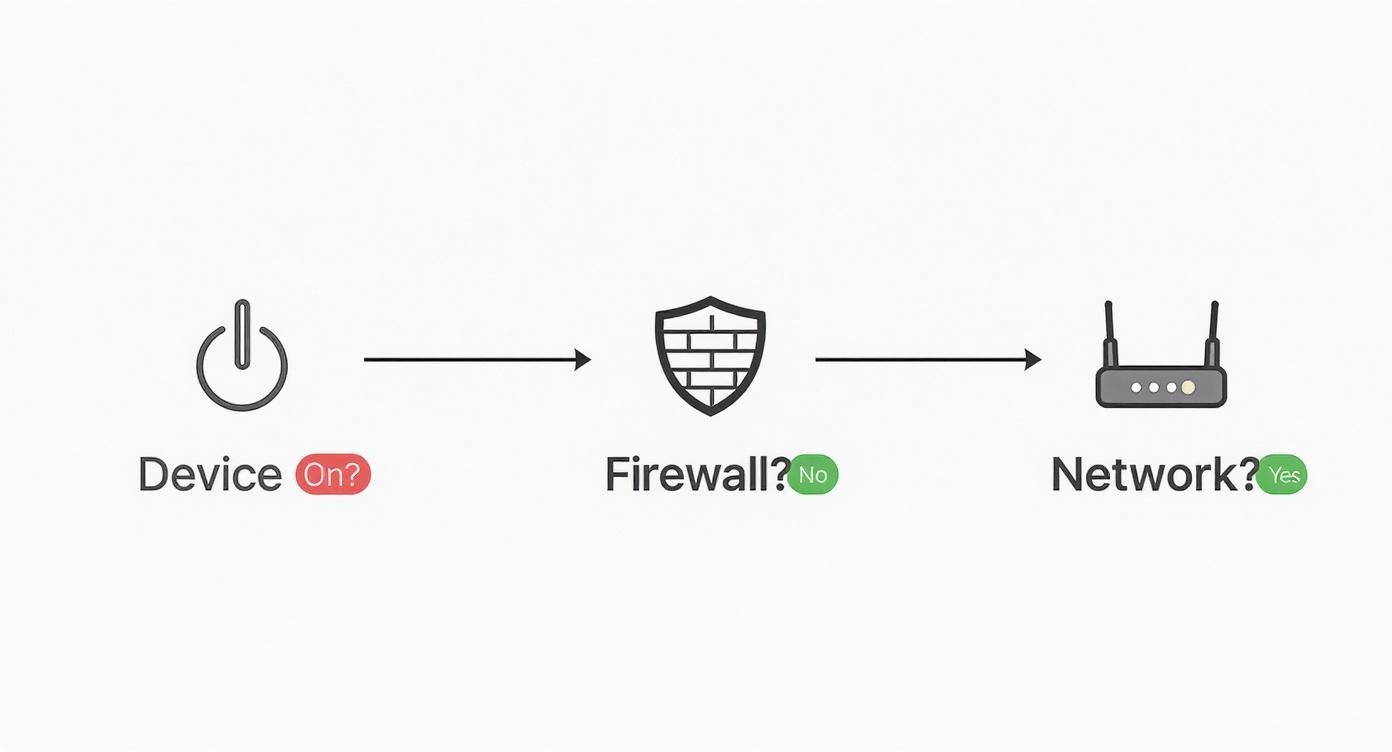
The diagram above is a great mental model for this process—check the device, check the firewall, then check the network. It’s a simple but effective way to narrow down the source of the problem.
Pro Tip: Once you've ruled out local hardware and software, you can confidently start looking at the target device and the path between you and it. This methodical approach stops you from chasing network ghosts and keeps your efforts focused.
By moving from the inside out, you clear the most common and simple fixes first. If you’ve done all this and the timeouts persist, you've gathered crucial evidence that the issue is further upstream. For a deeper dive into connection problems, you can learn more about how to test network latency. This structured process doesn't just solve the problem; it gives you a clear path forward.
Troubleshooting Command Comparison Across Platforms
Navigating network diagnostics can be tricky when you're switching between operating systems. Each has its own set of commands for the same fundamental tasks.
This table is a handy cheat sheet I've used for years to quickly find the right command for the job, whether I'm on a client's Windows machine or my own Linux box.
| Task | Windows Command | macOS/Linux Command |
|---|---|---|
| Check IP Configuration | ipconfig /all |
ifconfig or ip addr |
| Test Connectivity | ping [host] |
ping [host] |
| Trace Network Path | tracert [host] |
traceroute [host] |
| View Routing Table | route print |
netstat -r or ip route |
Having this quick reference saves you from having to Google basic syntax and lets you stay focused on the actual troubleshooting process. It’s all about efficiency.
Using Advanced Tools to Dig Deeper

When a simple ping test comes up empty, it’s a bit like a doctor telling you, "Something's wrong," but not what or where. To get to the bottom of a stubborn ping request time out, you need to upgrade from a basic check-up to a full diagnostic toolkit. Think of these advanced utilities as a GPS for your data packets, showing you the exact route they're taking and, more importantly, where they’re hitting a roadblock.
One of the first tools I always reach for is traceroute (or its Windows equivalent, tracert). This command is clever. It sends a sequence of packets toward your destination, with each one engineered to expire one step further down the network path. As each packet "dies," the router at that hop sends back a notification.
What you get is a hop-by-hop map of the digital journey from your machine to the target server. If the replies suddenly stop after a certain point, congratulations—you've just found the neighborhood where the problem lives. It could be anything from a faulty router in your ISP's network to a misconfigured firewall miles away.
Bypassing ICMP Blocks with Port-Specific Pings
Here’s a common scenario that trips up even seasoned pros: the server is perfectly fine, but it’s still not responding to your ping. Why? Because many network admins, for security reasons, configure firewalls to simply ignore standard ICMP ping requests. This security measure can make a healthy, functioning server look completely dead, leaving you with a misleading ping request time out.
This is where testing specific TCP ports becomes a game-changer. Utilities like tcping, psping (from the fantastic PsTools suite), or the swiss-army-knife of networking, nmap, don't just send a generic ICMP packet. Instead, they probe a specific service port, like port 80 for web traffic (HTTP) or 443 for secure traffic (HTTPS).
A successful connection to a specific port confirms two crucial things: the server is definitely reachable, and the specific service you actually care about is up and listening. This is a far more meaningful test of availability than a simple
pingcould ever be.
Imagine your standard ping to a web server times out repeatedly. Before you panic, you run a tcping to its port 443, and it connects instantly. Now you know the truth: the server is online, the web service is running, and the ICMP block was just a red herring. You can stop chasing a network ghost.
Unmasking the Problem with Packet Capture
For those truly baffling timeout issues—the ones that defy logic—you have to go deeper. You need to see exactly what’s happening on the wire. This is the job for a packet capture tool like Wireshark. Think of it as an MRI for your network traffic; it captures and decodes every single packet your machine sends and receives.
Running a packet capture while you try to ping a target gives you the ground truth. No more guessing. You can see, with your own eyes:
- Outgoing Requests: Is your computer actually sending the ICMP Echo Request packets? A capture proves it.
- Incoming Replies: Are any Echo Reply packets making it back, even if the command line doesn't show them?
- Error Messages: You might spot other critical ICMP messages, like "Destination Unreachable," which provide far more specific clues than a generic timeout.
This level of detail is incredible. With a packet capture, the ambiguity disappears. You can see precisely if your request left, if a reply was ever sent, or if something else interfered along the way. You'll have the hard evidence you need to finally pinpoint the root cause of the timeout.
How to Interpret Your Findings
Getting results from your diagnostic tools is one thing, but the real skill is in spotting the patterns. You have to learn to read the tea leaves of your network's behavior. A single, one-off ping request time out? That’s probably just a random network hiccup, nothing to lose sleep over. Consistent patterns, however—that's where the story gets interesting.
Are the timeouts happening in predictable bursts? This could point to a router or switch groaning under heavy load during peak hours. If the timeouts are constant and unwavering, you’re likely looking at a more permanent issue, like a misconfigured firewall rule or a device that’s simply offline. Then there's intermittent packet loss, where some pings get through and others vanish into thin air. That often signals a physical problem, like a frayed cable or a spotty Wi-Fi signal.
From Monitoring to Proactive Testing
This kind of diagnostic data is pure gold for ongoing network monitoring. Over the past decade, collecting and analyzing ping data has become fundamental for anyone managing large-scale network performance, especially for services with a global user base. A typical data record—timestamps, latency, packet loss—gets logged into databases that can handle millions of these measurements. With that volume of data, you can spot serious trends, like global latency spikes where ping times can rocket to nearly 4,000 ms during a major routing problem or a DDoS attack. For a deeper dive, you can learn more about historical data storage for network metrics on Ping Identity's documentation.
This proactive mindset naturally leads to a critical practice for developers: simulating failure before it happens in the wild. Instead of just reacting to a ping request time out, you should be actively testing how your application holds up when one inevitably occurs.
By intentionally simulating network failures, you can build applications that are resilient by design. The goal is to ensure your software can handle an unreliable connection gracefully, without crashing or losing user data.
Simulating a Ping Request Time Out
This is exactly where tools like DotMock come into play. You can set up a mock API to mimic all sorts of network failure scenarios, including complete timeouts. This gives your developers and QA teams a safe sandbox to test an application's resilience. For example, does your app's retry logic actually work as intended? Does it show a clear, helpful error message to the user when a backend service disappears?
This approach is a cornerstone of a discipline designed to build confidence in complex systems. If this proactive strategy sounds interesting, you should check out our guide on what is chaos engineering. It explores how running these controlled experiments can make your applications fundamentally stronger. By simulating timeouts, you shift from just fixing problems to preventing them from ever becoming a crisis.
A Few Common Questions About Ping Timeouts
When you're staring down a ping request time out, it’s easy to get stumped. The error is frustratingly vague, and it can point to a dozen different problems. Let's clear up some of the most common questions that pop up when you're trying to figure out what went wrong.
Think of this as a quick-reference guide to cut through the confusion and get you back on track.
Can My Internet Provider Cause a Timeout?
Yes, absolutely. Sometimes the problem isn't on your end or the server's end—it's somewhere in the middle. Your Internet Service Provider (ISP) could be experiencing anything from equipment failures and network congestion to wonky routing tables.
If you’ve already checked your own gear and are seeing timeouts when pinging multiple, rock-solid websites (think Google, Cloudflare, etc.), that’s a pretty big clue. The issue is likely upstream with your ISP. Running a traceroute is a great next step; it will often show you exactly where the connection is hitting a dead end within their network.
Does a Successful Ping Mean My Website Works?
This is a huge misconception, and it’s important to get it right. A successful ping only tells you one thing: the server is on the network and responding to ICMP requests. It’s like knocking on a door and hearing someone say, "I'm here!"
But that doesn't mean the web server software (like Apache or Nginx) is actually running. The server itself can be perfectly healthy, but the service on port 80 or 443 could be crashed or misconfigured. To check if a specific service is alive, you need a tool that can knock on the right "door," like tcping or curl.
Key Takeaway: Ping confirms network reachability, not service availability. A server can be "up" according to ping but still have a "down" website or application.
Why Does an IP Address Ping Work but a Domain Name Fails?
Ah, the classic sign of a Domain Name System (DNS) problem. When you try to ping example.com, the very first thing your computer does is ask a DNS server, "Hey, what's the IP address for this name?" If that process fails, the ping command throws its hands up before a single packet is even sent.
The fact that you can ping the IP address directly proves the network path is clear. The breakdown is happening during that initial name-to-number translation. The fix is often as simple as switching your device’s DNS settings to a reliable public resolver, which usually clears things up instantly.
Ready to stop reacting to timeouts and start building resilient applications? With DotMock, you can simulate network failures, latency, and errors in a safe environment, ensuring your software is prepared for anything. Create your first mock API in seconds and test your application's resilience today.