
We’ve all seen it: the dreaded "connection timing out" error. But what does it actually mean? Think of it like a phone call. You dial a number and wait for someone to pick up, but after a certain number of rings, you just hang up. That’s essentially what’s happening here. Your device sends out a request, waits for a reply, and when one doesn't come back in a reasonable amount of time, it gives up.
This built-in timeout is a safety net. It stops your browser or app from getting stuck, endlessly waiting for a server that might be offline, overloaded, or just not listening.
What’s Really Happening When a Connection Times Out
A connection timeout is less of a specific problem and more of a symptom. It tells you there's a breakdown in communication somewhere between you (the client) and the server you're trying to reach. The root cause could be almost anywhere along that path.
The problem could be right on your own machine, deep within the maze of network routers, or on the server at the other end. To fix it, you have to figure out where that communication chain broke.
- Client-Side Issues: The culprit might be your own device. Think misconfigured browser settings, an overly zealous firewall, or even bad DNS information.
- Network Problems: The internet isn't a single wire; it's a massive, complex web. A failure at any point—a congested router or a downed link—can stop your request from getting through.
- Server-Side Failures: Sometimes, it's not you, it's them. The server you're trying to contact could be down for maintenance, swamped with more traffic than it can handle, or struggling with its own internal errors.
These timeouts are more than a simple nuisance; they're a growing headache as our applications become more distributed. A recent ThousandEyes report revealed a startling 32% month-over-month jump in global outages recently, many of which show up to end-users as frustrating timeouts.
Finding the Timeout Culprit
To figure out what’s wrong, you have to know where to look. A good way to start is by categorizing the potential causes, which helps narrow down your troubleshooting. The diagram below shows the basic idea: a request goes out, the clock starts ticking, and if no response arrives before time runs out, the connection fails.
When this happens, it just means the data packet you were waiting for never showed up. High network latency is a frequent contributor here; we actually have a whole guide on how to test network latency if you want to dive deeper.
Remember, a timeout doesn't always mean the server is completely dead. It just means a response didn't arrive in the expected window. The server might just be slow, the network could be congested, or your request packet simply got lost in transit.
To help you quickly identify potential issues, here's a quick rundown of the most common causes.
Common Causes of Connection Timeouts at a Glance
| Problem Area | Common Causes | Simple Explanation |
|---|---|---|
| Client-Side | Browser settings, outdated software, local firewalls, incorrect proxy settings. | The problem is on your own device or local network. |
| Network | ISP outages, congested routers, poor Wi-Fi signal, DNS resolution failures. | The issue lies somewhere between you and the server on the internet. |
| Server-Side | Server is offline, overloaded with traffic, firewall rules, application errors. | The destination server is unable or unwilling to respond in time. |
Breaking the problem down this way makes it much easier to start investigating. You can begin with what's closest to you—your own setup—and work your way out from there.
Your Practical Troubleshooting Checklist
When you’re staring at a "connection timing out" error, it’s easy to feel stuck. But what you really have is a puzzle, and the best way to solve it is with a methodical approach. We’re going to walk through the process like a seasoned pro, starting with the simplest checks right in front of you and working our way outward. This turns that vague error into a clear, solvable problem.
Let's begin with the things you can control directly: your own setup. These first few checks are all about ruling out local issues that can easily masquerade as a major network catastrophe.
Start with Client-Side Diagnostics
Before you start unplugging routers or blaming the server, take a hard look at the device you're using. You'd be surprised how often a local glitch is the real culprit, and it's almost always the easiest thing to fix. A quick check here can save you a mountain of frustration.
Your first move? A "hard refresh" in your browser. This simple command forces it to ignore its cache and pull down a fresh copy of the page. If that doesn't do the trick, the next logical step is to clear your browser's entire cache and cookies.
From there, it's time to isolate the variable. Try these quick diagnostic actions:
- Switch Browsers: See if the site loads in a different browser. If it does, you've narrowed the problem down to your primary browser's settings, a fussy extension, or maybe a recent update that went sideways.
- Use a Different Device: Grab your phone (and make sure to use cellular data, not your Wi-Fi) or another computer. If the site pops right up, the issue is almost certainly confined to your original device or its local network connection.
- Disable Browser Extensions: That overzealous ad-blocker or some other extension could be interfering with network requests. Try turning them off one by one to see if the connection suddenly starts working.
- Check Local Security Software: Your antivirus or personal firewall might be a little too protective, blocking a connection it shouldn't. Temporarily disabling them is a quick way to see if they're the source of the timeout.
This decision tree helps visualize the diagnostic flow from the initial request to the final timeout error.
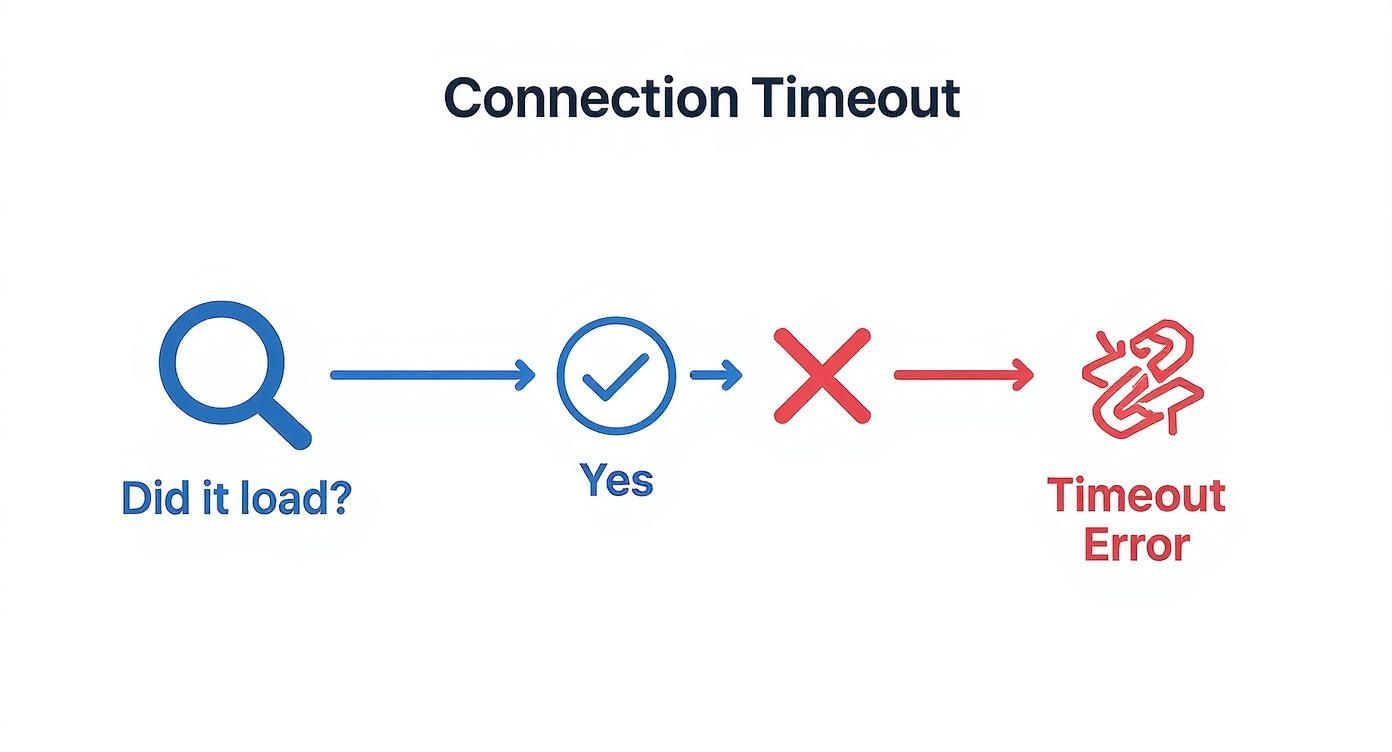
The diagram makes it clear: a failure at any point in the process leads to the same "connection timing out" message. That’s why a structured approach is so critical.
Investigate Your Local Network Hardware
Alright, so your device seems fine. The next logical place to look is your local network hardware. We're talking about your modem and router—the gatekeepers to the internet.
You’ve heard it a million times for a reason: try turning it off and on again. A simple power cycle, where you unplug both devices for about 60 seconds and then plug them back in, resolves a shocking number of network glitches. This clears their memory and forces them to establish a completely fresh connection with your ISP.
While you're down there, give the physical cables a once-over. A loose Ethernet cord can cause the kind of intermittent drops that look exactly like a connection timeout. For more detailed steps, it's often helpful to review guides on diagnosing and fixing wireless network disconnections, since a flaky Wi-Fi signal is a very common cause.
The key takeaway here is to isolate variables. If you're on Wi-Fi, try plugging directly into the router with an Ethernet cable. If the problem disappears, you’ve just confirmed the issue is with your wireless signal, not the internet service itself.
Determine If the Server Is the Problem
So, you've confirmed the issue isn't your device and it's not your local network. Now what? It's time to look at the other end of the connection: the server itself.
The easiest way to do this is to see if other websites are working. If you can browse everywhere else without a hitch, the problem is almost certainly with the specific site you're trying to reach.
To be absolutely sure, you can use a third-party "down detector" website. These services check a site's status from various locations around the globe, giving you a definitive answer on whether it's just you or if the site is offline for everyone. If the server is indeed the problem, there's not much you can do but wait for its administrators to get it back online.
And these issues are far from rare. One recent survey found that a staggering 84% of businesses have seen an uptick in network outages. These are often caused by the very server hardware failures and misconfigurations that lead directly to connection timeouts. By following this checklist, you can efficiently figure out whether the timeout is a problem you can fix or one you just have to wait out.
Investigating Firewalls, Proxies, and DNS
When you’ve checked all the obvious culprits—the client, the server, the cables—and you're still hitting that connection timing out wall, it's time to look at the invisible middlemen. These are the systems working in the background to manage traffic: firewalls, proxy servers, and the Domain Name System (DNS).
These components are critical for a secure and functional network, but a small misconfiguration in any of them can silently kill your connection. To your browser, a dropped packet from a firewall or a failed DNS lookup looks exactly the same as a server that’s completely offline.
When Your Firewall Is Too Aggressive
Think of a firewall as the bouncer for your network. It stands at the door, checking every piece of incoming and outgoing traffic against a strict set of rules. You'll find them everywhere: built into your operating system (like Windows Defender), on your home router, and as heavy-duty appliances in corporate networks.
But sometimes, that bouncer gets a little overzealous. An overly strict firewall rule can mistake a perfectly legitimate request for a threat and simply drop it on the floor. No rejection, no error message—just silence. That silence is what leads directly to a connection timeout.
This can pop up in a few common scenarios:
- After an Update: A recent security software update might have tightened its rules, suddenly blocking an app that worked perfectly yesterday.
- New Software: You install a new application that needs to communicate on a specific port, but the firewall is blocking that port by default.
- Switching Networks: Hopping onto a public Wi-Fi network or a corporate VPN means you're now behind their firewall, which might have completely different rules.
The quickest way to check if this is the issue is to temporarily disable your personal firewall and try the connection again. If it works, you’ve found your culprit. Just remember to turn it back on immediately and instead create a specific exception for the application or service you need.
The Proxy Server Bottleneck
In many corporate environments, your internet traffic doesn’t go straight to its destination. It first passes through a proxy server, which acts as a gateway for security, content filtering, or performance caching.
This extra hop is another potential point of failure. If the proxy server itself is overloaded with requests, misconfigured, or having its own network problems, it can become a serious bottleneck. It might fail to forward your request—or the server's response—fast enough, leading to a timeout. The frustrating part is that the error points to the destination server, even though the real problem is the intermediary.
A quick tip from the field: Proxy issues are notoriously difficult to diagnose on your own because they're typically managed by a central IT team. If you're on a work network and suspect the proxy is at fault, your first and best step is to get in touch with your IT department.
You can actually see how this traffic interception works by checking out how tools like DotMock's proxy mode operate, which uses the same underlying principles for API development and testing.
Unraveling DNS-Related Timeouts
Before your browser can even think about establishing a connection, it needs an IP address. That’s the job of the Domain Name System (DNS), the internet’s address book. A DNS hiccup is one of the most common—and often overlooked—causes of connection timeouts.
If your computer asks its DNS server for an IP address and gets no answer in time, the whole process stops before it even starts. Without the address, no request can be sent. After a moment, your browser gives up, and you see the familiar timeout error.
Connection timeouts often come down to a problem with DNS. For a deeper dive, there are some great guides on troubleshooting common DNS issues that offer clear, actionable steps to get things sorted out.
How to Prevent Timeouts Before They Happen

Fixing a connection timing out error is a good skill to have, but building systems where they rarely happen in the first place is the real goal. Shifting from a reactive "firefighting" mode to a proactive one is what separates good systems from great ones. It's about implementing durable fixes that get to the root of the problem.
For any developer or sysadmin, this means thinking bigger than just the error message. It’s about scrutinizing your application architecture and infrastructure to build in resilience from the ground up. This proactive approach builds something invaluable: user trust.
Optimize Server-Side Configurations
One of the most effective ways to head off timeouts is to get your server configurations right. You’d be surprised how often timeouts happen just because a server’s default settings aren’t a good match for its actual workload, especially for apps with long-running tasks.
Think about a web app that generates a complex financial report or processes a huge file upload. These jobs can easily blow past a web server's default 30-second timeout. The fix is to identify those specific endpoints and give them a more generous execution timeout. It’s a simple tweak that stops legitimate, resource-intensive tasks from getting killed prematurely.
Keep-alive settings are just as important. The keep-alive timeout dictates how long a server holds an idle connection open. Set it too low, and you force users to constantly reconnect. Set it too high, and you risk tying up all your server's resources. The sweet spot depends entirely on your traffic patterns.
Implement Smart Client-Side Logic
Prevention isn't just a server-side responsibility—the client application has a huge part to play. Building resilience directly into your frontend or client can gracefully navigate the kind of temporary network hiccups that would otherwise throw a hard timeout error.
A key takeaway for developers is to assume failure is inevitable. Instead of hoping for a perfect network, code defensively. This means implementing intelligent retry mechanisms with exponential backoff.
Here’s how that works in the real world:
- Initial Retry: A request fails, so the app waits a brief moment—say, 1 second—before trying again.
- Exponential Backoff: If it fails again, the wait time doubles to 2 seconds, then 4, and so on. This gives a struggling service time to recover.
- Circuit Breaker: After a few failed attempts, the application temporarily stops trying. This "opens the circuit," preventing your app from hammering a service that's clearly down.
This kind of logic makes your application feel much more stable to the end user. What could have been a jarring "connection timing out" error becomes a minor, often unnoticed, delay. This is absolutely critical in today's API-heavy world. In fact, API connection timeouts are becoming more common, with average weekly downtime jumping an incredible 60% in the last year alone.
Bolster Your Infrastructure
Even the most well-written software will crumble on a weak foundation. Preventing timeouts means making sure your infrastructure can handle the load, especially when you get a sudden surge in traffic.
Using a Content Delivery Network (CDN) is table stakes. A CDN caches static files on servers distributed globally, putting them physically closer to your users. This simple change dramatically cuts down on latency, a major cause of connection timeouts.
Beyond a CDN, you have to get resource scaling right. Keep a close eye on your server's CPU, memory, and I/O usage. Use auto-scaling groups to automatically spin up more servers when traffic spikes and then scale back down when things quiet down. This elasticity ensures you always have the capacity to handle requests without delay.
By combining these strategies, you start to build a system where timeouts are the rare exception, not a daily headache. It's a mindset borrowed from practices like chaos engineering, where you intentionally break things to find weaknesses before your users do.
Building More Resilient Systems With DotMock
If you want to build software that can actually handle the wild, unpredictable nature of the internet, you have to test for failure. You can’t just hope for the best. Proactively simulating a connection timing out error is one of the most effective ways I've seen to find and patch up weak spots before they ever affect a real user. This is where a tool like DotMock really shines, letting you create a bit of controlled chaos.
When you simulate timeouts and other network hiccups in a safe development environment, you can build applications that handle problems gracefully instead of just falling over. It’s a fundamental shift in mindset—from reactive firefighting to proactive engineering. That’s the real secret to creating robust, user-friendly systems.
Here’s a quick look at the DotMock interface. It’s pretty straightforward for setting up these kinds of failure scenarios.
The whole point is to make this kind of testing easy. Developers can set up complex failure simulations, like connection timeouts, with just a few clicks. This means teams can actually bake resilience testing into their day-to-day workflow without needing a week of training.
A Scenario for Frontend Developers
Picture this: you're building a user dashboard that pulls in key metrics from an API. On a good day, that API responds in milliseconds. But what happens when it gets overloaded and times out? If you haven't planned for it, a connection timing out event could freeze your entire UI, leaving the user staring at an endless loading spinner. We've all been there, and it's infuriating.
With DotMock, you can force this exact failure to happen on your terms. Just configure a mock API endpoint to introduce a 10-second delay before it responds. When your frontend app calls this endpoint, the request will inevitably time out, and you get to see exactly how your error-handling logic holds up.
Does your application:
- Show a helpful message like, "We're having trouble loading this data. Please try again in a moment"?
- Provide a "Retry" button so the user can try again without a full page refresh?
- Avoid locking up the entire interface, letting the user interact with other parts of the dashboard?
This kind of proactive testing turns a potentially awful user experience into a minor, well-managed hiccup. It’s what separates a professional, polished application from one that feels brittle and unreliable.
How QA Engineers Can Automate Failure Testing
For any Quality Assurance (QA) engineer, repeatable and predictable tests are the name of the game. Manually trying to test every possible network failure is a recipe for insanity. This is where DotMock can be integrated directly into automated testing suites, making life much easier.
Think about an e-commerce checkout flow. A QA engineer can write an automated test that simulates a timeout right when the app tries to hit the payment gateway's API. This is a mission-critical failure point that has to be handled flawlessly.
The automated test would then check that if a connection timing out error occurs, the system behaves correctly:
- It does not charge the customer's card.
- It clearly tells the user that the payment couldn't be processed.
- It saves the user's cart so they don’t have to start all over again.
- It logs the error properly so the development team can investigate what happened.
By automating these checks, you get a solid guarantee that even when network conditions are terrible, your application will behave predictably. This protects both your customers and your business from costly mistakes.
By simulating the worst-case scenarios in a controlled environment, you're not just finding bugs; you're building trust. Users are far more forgiving of an application that tells them something went wrong than one that simply breaks.
DevOps and CI/CD Pipeline Integration
For DevOps teams, the prime directive is to catch problems as early as possible. Integrating DotMock into a Continuous Integration/Continuous Deployment (CI/CD) pipeline is a powerful way to enforce service resilience from the get-go.
Imagine a microservices architecture where a "user-profile" service depends on an "authentication" service. If that auth service suddenly becomes slow or times out, how does the user-profile service react? Does it fail gracefully with a sensible fallback, or does it crash and trigger a cascade of failures across the entire system?
You can configure your CI/CD pipeline to run tests against a DotMock instance every time new code is pushed. For example, when a developer commits a change to the user-profile service, the pipeline automatically kicks off a series of integration tests. One of those tests uses DotMock to make the authentication service simulate a timeout.
The pipeline then checks if the user-profile service handles that connection timing out error correctly. If it crashes or gets stuck in a bad state, the build fails automatically. This simple check acts as a gatekeeper, preventing fragile code from ever making its way into production and ensuring a high standard of resilience for every single service.
DotMock Timeout Simulation Scenarios by Role
To make this more concrete, here are a few practical examples of how different teams can use a tool like DotMock to test for and prevent timeout-related failures. Each role has a unique perspective on what "resilience" means, but the goal is always the same: make the system stronger.
| Team/Role | Scenario Example | Key Outcome |
|---|---|---|
| Frontend Dev | Mock the user data API to have a 15-second response delay. | Verify that the UI displays a skeleton loader, then an error message with a "retry" button, without freezing the app. |
| Backend Dev | Simulate a timeout from a third-party dependency (e.g., a payment gateway or email service). | Ensure the service fails gracefully with proper error logging and that it doesn't leave data in an inconsistent state. |
| QA Engineer | Create an automated test where the login service times out during a checkout flow. | Confirm the user is logged out, their cart is saved, and a clear error message guides them to log in again. |
| DevOps | In a CI pipeline, simulate a critical downstream service (e.g., database) becoming unresponsive. | The build fails if the upstream service doesn't handle the timeout correctly, preventing fragile code from being deployed. |
| SRE/Platform | Run a chaos experiment where a mock service in the mesh randomly introduces latency and timeouts. | Observe how the system auto-scales, retries, and circuit-breaks under stress to identify systemic weaknesses. |
As you can see, timeout simulation isn't just a developer task. It's a team-wide responsibility that helps build a shared understanding of how the system behaves under pressure, ultimately leading to a more reliable product for your users.
Common Questions About Connection Timeouts
Even after running through all the troubleshooting steps, a few questions always seem to pop up. Let's tackle some of the most common ones I hear when people are wrestling with a connection timing out error. Think of this as a quick Q&A to clear up any lingering confusion.
These are the real-world questions that come up when you're in the trenches, whether you're just trying to load a webpage or debugging a critical application. Getting a straight answer can save a ton of time and frustration.
Can a Slow Internet Connection Cause a Timeout Error?
Absolutely. It's one of the most frequent culprits. While a slow connection usually just means sluggish loading times, it can easily tip over into a full-blown timeout.
Every request your computer makes has a stopwatch ticking. It expects a response within a certain window of time. If your internet is too slow or spotty, the data packets just can't make the round trip fast enough. The server on the other end eventually just gives up waiting, and that’s when you get slapped with the timeout error. This happens a lot with large file downloads, video streams, or any app that needs a steady, reliable connection.
Is the Timeout My Fault or the Website's Fault?
It could be either, and figuring out which is the whole game. The first thing I always do is try to load a few other, unrelated websites. If they pop right up, the problem is almost certainly on the other end—the site you want is likely down or just swamped with traffic.
But if nothing loads, the issue is on your side of the screen. It could be anything from your Wi-Fi acting up to a problem with your router or even a wider outage from your internet provider. Running through the diagnostics we covered earlier will help you nail down exactly where the failure is happening.
Here's a quick pro tip: try to access the site on your phone using cellular data. If it works there, the problem is definitely with your local network or device, not the website. That simple test can narrow your focus instantly.
How Do I Change Timeout Settings on My Browser?
The short answer is: you don't. And you really shouldn't try. For the average person, browser timeout values are hard-coded to follow well-established internet standards. Messing with them isn't the fix.
The timeout settings that you can control are almost always on the server side, which is the domain of developers and system administrators. For example, they might configure a web server to wait longer for a heavy database query to finish before killing the connection. If you're a developer, you can also set custom timeout values right in your application's code when making API calls. But for everyday browsing, you need to fix the underlying cause, not tweak a browser setting.
How Can Monitoring Tools Help Prevent Timeouts?
For any business running an online service, monitoring tools are non-negotiable. They're your early warning system, keeping a constant eye on the health of your servers, networks, and applications.
These tools can spot trouble long before it's big enough to cause timeouts for your users. Think rising CPU usage, sluggish database queries, or a sudden spike in network latency. By setting up smart alerts, your team can get a heads-up and jump on a problem proactively. For instance, an alert can flag that a server is running low on memory, giving an admin time to add resources before anyone ever sees a connection timing out error. It's all about shifting from being reactive to proactive.
Ready to build applications that can withstand real-world failures? With DotMock, you can easily simulate connection timeouts, latency, and other network issues to ensure your software is resilient and reliable. Stop guessing and start testing. Create your first mock API in seconds and see how your application holds up under pressure. Visit us at https://dotmock.com to get started.